


Introduction
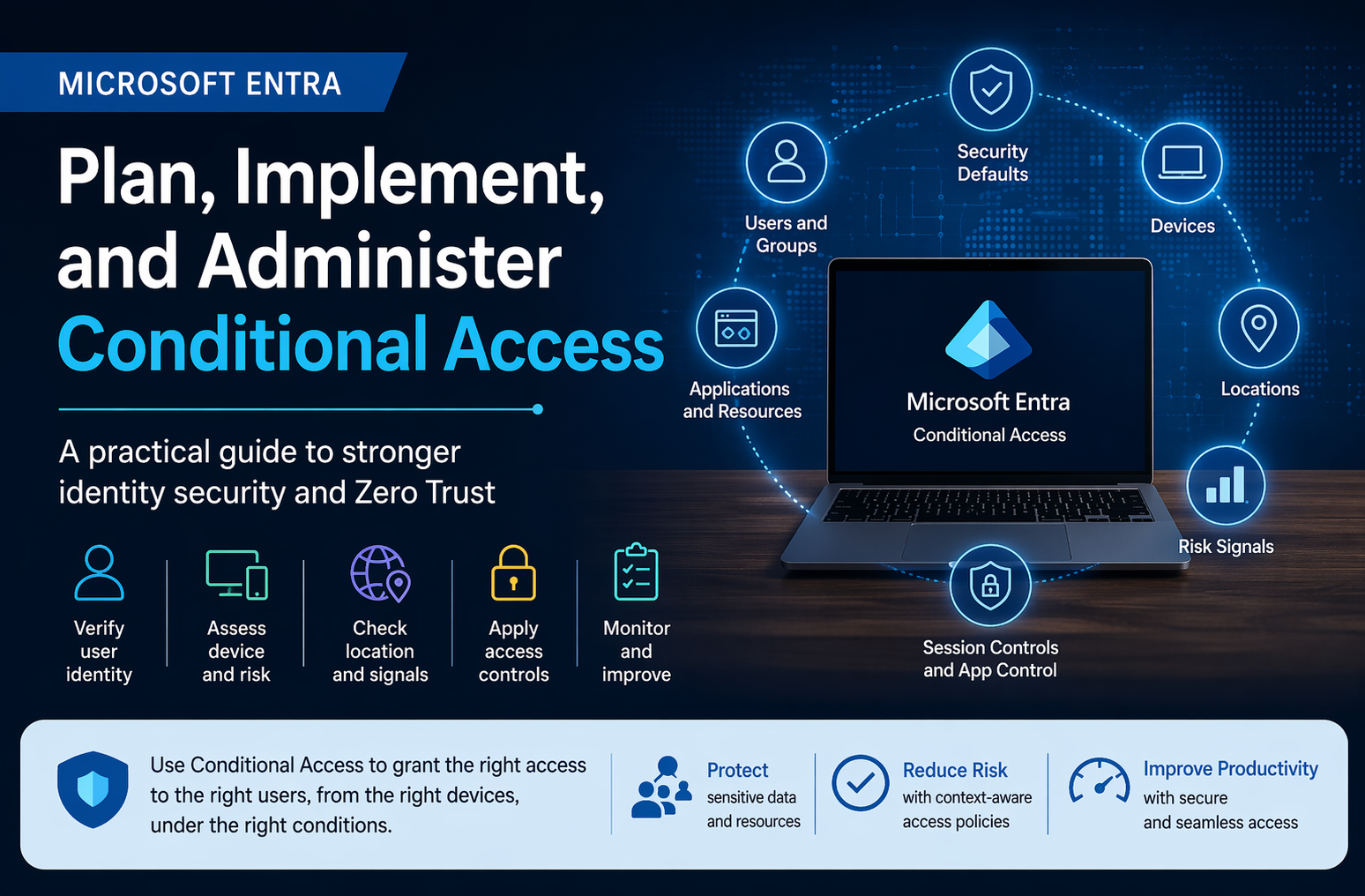
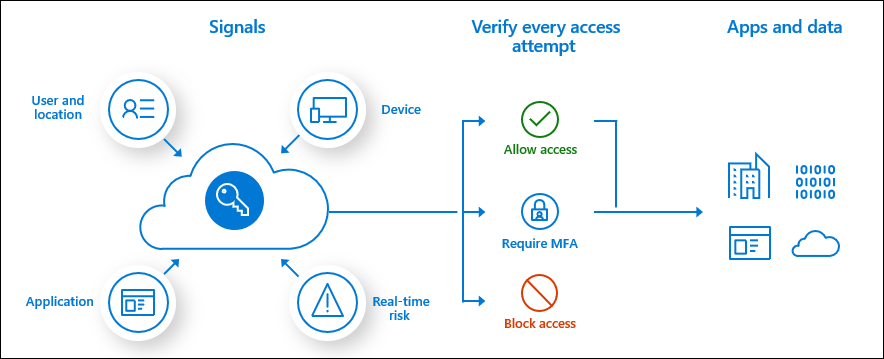
In today’s hybrid work environment, identity has become the new security perimeter. Users sign in from multiple devices, locations, and applications, which means organizations can no longer rely on a traditional network boundary alone. Microsoft Entra Conditional Access addresses this challenge by acting as a Zero Trust policy engine that evaluates signals such as user identity, device state, location, client app, and risk before deciding whether to allow, block, or limit access.
The Microsoft Learn module “Plan, Implement, and Administer Conditional Access” helps administrators understand how to deploy and manage Conditional Access in a structured way. The module covers key areas such as security defaults, policy planning, assignments and controls, testing and troubleshooting, application controls, session management, smart lockout, and even emerging protection for AI agent identities.
Why Conditional Access Matters
Conditional Access is powerful because it allows organizations to apply security only when necessary. Instead of forcing the same control for every sign-in, administrators can create policies that react to real conditions. For example, a user accessing Microsoft 365 from a compliant corporate device may have a smoother experience than a user trying to access the same resource from an unmanaged device or risky location. This helps security teams protect sensitive data without creating unnecessary friction for end users.
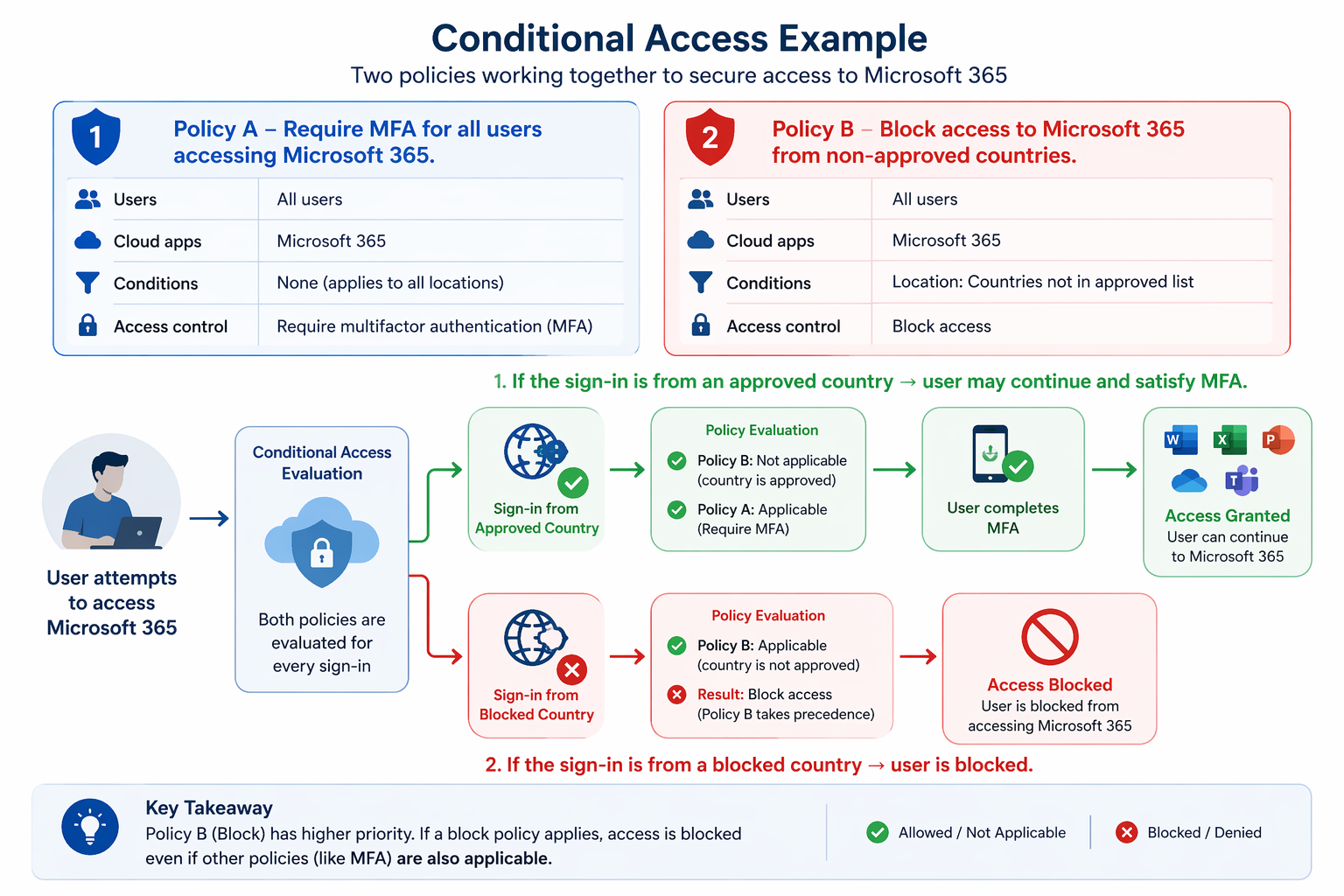
Microsoft describes Conditional Access policies as simple if-then statements: if a user wants to access a resource under certain conditions, then they must complete an action such as multifactor authentication (MFA), use a compliant device, or meet another control. Multiple policies can apply to the same sign-in, and when that happens, all applicable requirements must be satisfied before access is granted.
Security Defaults vs. Conditional Access
For smaller organizations or those just beginning their identity security journey, security defaults provide a baseline set of protections at no extra cost. These defaults help defend against common attacks by requiring MFA registration, requiring MFA for administrators, challenging users when needed, blocking legacy authentication, and protecting privileged access. Microsoft notes that MFA and blocking legacy authentication are highly effective against common identity attacks.
However, security defaults are not designed for complex or highly customized environments. Organizations with Microsoft Entra ID P1 or P2 licenses and more advanced requirements typically benefit more from Conditional Access, because it offers granular targeting by users, groups, apps, locations, devices, and risk conditions. Microsoft also recommends not combining security defaults with Conditional Access policies, because once Conditional Access is in use, security defaults are no longer the appropriate control model for that tenant.
The Building Blocks of a Conditional Access Policy
A well-designed Conditional Access policy starts with understanding its core components. Microsoft explains that policy construction revolves around assignments and access controls. Assignments define who is affected, what resources are targeted, and under what conditions the policy should apply. Access controls determine whether access will be blocked, granted under certain requirements, or limited through session controls.
Assignments can target all users, specific groups, directory roles, guest or external users, and in some cases agents or workload identities. Administrators can also scope policies to cloud apps, user actions, authentication context, device platforms, client apps, locations, and risk signals. This makes Conditional Access highly flexible, but it also means policies must be designed carefully to avoid accidental lockouts or conflicting experiences.
How to Plan a Safe Deployment
Planning matters as much as policy creation. Microsoft’s deployment guidance emphasizes that Conditional Access is flexible, but that same flexibility can create undesirable outcomes if policies are rolled out too quickly. A recommended approach is to begin with clear objectives, identify which users and apps are highest priority, create pilot groups, and communicate changes before large-scale rollout.
A strong deployment strategy should also include emergency access (break-glass) accounts so administrators are not locked out by mistake. Microsoft further recommends using policy templates aligned with common scenarios such as secure foundation, Zero Trust, remote work, administrator protection, and emerging threats. These templates are typically created in report-only mode, allowing teams to evaluate impact before enforcing them in production.
Test Before You Enforce
One of the smartest ways to reduce risk is to test Conditional Access policies before turning them on. Microsoft provides report-only mode, which evaluates how policies would behave during sign-in without actually enforcing the controls. This gives administrators visibility into whether a sign-in would have succeeded, failed, or required user action, all without disrupting users.
For even deeper analysis, the What If tool allows administrators to simulate a specific sign-in scenario using a selected identity, target resource, and sign-in conditions. This is particularly useful when troubleshooting issues, validating complex combinations of conditions, or understanding how multiple policies interact. Together, report-only mode and the What If tool provide a safe and practical method for validating policy behavior before live deployment.
Application Controls and Session Management
Conditional Access does more than allow or block sign-ins; it can also control what happens after the user gets in. Microsoft supports session controls such as sign-in frequency, persistent browser session settings, application-enforced restrictions, and Conditional Access App Control integrations for real-time monitoring and protection. These controls are especially valuable when organizations want to limit data exposure without fully blocking access.
For example, session policies can help ensure users on unmanaged devices receive a restricted experience in supported applications, reducing the risk of sensitive data being downloaded or mishandled. Organizations can also integrate with Microsoft Defender for Cloud Apps to monitor and control app sessions in real time, which adds another protective layer for cloud application usage.
Smart Lockout: Another Layer of Protection
Conditional Access often works alongside other identity security controls, and Microsoft Entra Smart Lockout is an important example. Smart lockout helps protect accounts from password-guessing and brute-force attacks by locking out attackers while trying to avoid unnecessary disruption for legitimate users. Microsoft states that smart lockout is enabled for all Microsoft Entra customers with secure defaults in place, and organizations with the right licensing can customize the settings to better align with their needs.
This matters because identity protection is not just about making access decisions at sign-in time; it is also about preventing abuse before attackers can succeed. By combining Conditional Access with smart lockout, organizations can strengthen their identity defense posture with both policy-based control and brute-force resistance.
Conditional Access and the Rise of AI Agent Identities
A newer and very relevant development in Microsoft Entra is support for agent identities in Conditional Access. Microsoft now extends Conditional Access concepts to AI-related access patterns, allowing organizations to apply policy logic not only to human users, but also to agents requesting access tokens for resources such as SharePoint files, APIs, MCP servers, or OpenAPI services.
This is an important shift because modern identity security must account for autonomous and semi-autonomous workloads, not just employees. As organizations increasingly adopt AI-powered assistants and automation, Conditional Access can help ensure that these identities are governed by the same Zero Trust principles that apply to people: verify explicitly, enforce least privilege, and continuously evaluate risk and context.
Best Practices for Administrators
If you are implementing Conditional Access in your environment, a few practical best practices stand out from Microsoft’s guidance:
- Start with foundational protections such as MFA for administrators and blocking legacy authentication.
- Use pilot users and groups first instead of applying policies tenant-wide on day one.
- Keep emergency access accounts excluded from Conditional Access to avoid administrative lockout.
- Use report-only mode and the What If tool before enforcement.
- Leverage templates where possible to align with Microsoft-recommended starting points.
- Review session controls carefully so you can balance security with usability.
Conclusion
The Microsoft Learn module on planning, implementing, and administering Conditional Access is more than just a training exercise—it is a practical roadmap for building modern identity protection. Conditional Access enables organizations to make smarter access decisions using real-time context, while supporting Zero Trust principles across users, devices, apps, sessions, and even AI agent identities.
For administrators, the key to success is not simply enabling policies, but designing them thoughtfully, testing them carefully, and aligning them with business needs. When implemented correctly, Conditional Access helps organizations strengthen security, reduce attack surface, and maintain productivity in a world where identity is now the primary control point.
Sources Used
Microsoft Learn training module: Plan, Implement, and Administer Conditional Access
- Microsoft Entra documentation hub: Conditional Access documentation
- Microsoft Entra overview: What is Conditional Access?
- Deployment guidance: Plan a Conditional Access deployment