


<#
.SYNOPSIS
    Bulk update WorkingHoursTimeZone for room mailboxes from a two-column CS
    (Identity, WorkingHoursTimeZone) using Set-MailboxCalendarConfiguration.

.DESCRIPTION
    - Reads a CSV (default: .\batch_01.csv) with headers:
        Identity, WorkingHoursTimeZone
    - Validates timezone values against Windows time zone IDs.
    - Compares with current mailbox value; updates only if different.
    - Runs as a DRY RUN by default. Use -Apply to commit.
    - Produces a results log CSV in the same folder with a timestamped file name.

.PARAMETER CsvPath
    Path to the input CSV file (default: .\batch_01.csv).

.PARAMETER Apply
    Switch to commit changes. If omitted, runs in WhatIf (dry run) mode.

.EXAMPLE
    .\Set-RoomWorkingHoursTimeZone.ps1 -CsvPath .\batch_01.csv
    # Dry run (no changes). Shows what *would* change.

.EXAMPLE
    .\Set-RoomWorkingHoursTimeZone.ps1 -CsvPath .\batch_01.csv -Apply
    # Commits the timezone updates.

.NOTES
    Requires the ExchangeOnlineManagement module.
#>

[CmdletBinding(SupportsShouldProcess=$true)]
param(
    [Parameter(Mandatory=$false)]
    [string]$CsvPath = ".\batch_01.csv",

    [switch]$Apply
)

# region Module & Connection
try {
    if (-not (Get-Module -ListAvailable -Name ExchangeOnlineManagement)) {
        Write-Host "Installing ExchangeOnlineManagement module for current user..." -ForegroundColor Yellow
        Install-Module ExchangeOnlineManagement -Scope CurrentUser -Force -AllowClobber
    }
    Import-Module ExchangeOnlineManagement -ErrorAction Stop

    # Try a simple call; if it fails, connect.
    try {
        Get-EXOMailbox -ResultSize 1 -ErrorAction Stop | Out-Null
    } catch {
        Write-Host "Connecting to Exchange Online..." -ForegroundColor Cyan
        try {
            Connect-ExchangeOnline -ShowBanner:$false
        } catch {
            Write-Warning "Interactive sign-in failed or blocked. Trying device code flow..."
            Connect-ExchangeOnline -UseDeviceAuthentication -ShowBanner:$false
        }
    }
}
catch {
    Write-Error "Failed to prepare Exchange Online session: $($_.Exception.Message)"
    return
}
# endregion

# region Read & validate CSV
if (-not (Test-Path -Path $CsvPath)) {
    Write-Error "CSV not found: $CsvPath"
    return
}

# Import and trim whitespace from the two required fields
$rows = Import-Csv -Path $CsvPath | ForEach-Object {
    [PSCustomObject]@{
        Identity             = (($_.Identity) -as [string]).Trim()
        WorkingHoursTimeZone = (($_.WorkingHoursTimeZone) -as [string]).Trim()
    }
}

if (-not $rows -or $rows.Count -eq 0) {
    Write-Error "CSV is empty or could not be parsed."
    return
}

# Build a set of valid Windows time zone IDs from .NET (matches what EXO expects)
$validTimeZones = [System.TimeZoneInfo]::GetSystemTimeZones().Id

# Prepare output log
$timestamp = (Get-Date).ToString("yyyyMMdd_HHmmss")
$logPath   = Join-Path -Path (Split-Path -Parent $CsvPath) -ChildPath ("WorkingHoursTimeZone_UpdateResults_{0}.csv" -f $timestamp)
$results   = @()

# Configure WhatIf behavior (default dry run)
$useWhatIf = -not $Apply.IsPresent
if ($useWhatIf) {
    Write-Host "Running in DRY RUN mode (WhatIf). Use -Apply to commit changes." -ForegroundColor Yellow
} else {
    Write-Host "Applying changes..." -ForegroundColor Green
}
# endregion

# region Process rows
$index = 0
$total = $rows.Count

foreach ($row in $rows) {
    $index++
    Write-Progress -Activity "Updating WorkingHoursTimeZone" -Status ("{0} of {1}: {2}" -f $index, $total, $row.Identity) -PercentComplete (($index / $total) * 100)

    $identity = $row.Identity
    $targetTz = $row.WorkingHoursTimeZone

    $result = [PSCustomObject]@{
        Identity             = $identity
        PreviousTimeZone     = $null
        TargetTimeZone       = $targetTz
        EffectiveTimeZone    = $null
        Action               = $null
        Success              = $false
        Error                = $null
    }

    try {
        if ([string]::IsNullOrWhiteSpace($identity) -or [string]::IsNullOrWhiteSpace($targetTz)) {
            throw "Missing Identity or WorkingHoursTimeZone in CSV row."
        }

        if ($validTimeZones -notcontains $targetTz) {
            throw ("Invalid WorkingHoursTimeZone '{0}'. Must be a valid Windows time zone ID (e.g., 'W. Europe Standard Time')." -f $targetTz)
        }

        # Get current config to avoid unnecessary updates
        $current = Get-MailboxCalendarConfiguration -Identity $identity -ErrorAction Stop
        $result.PreviousTimeZone = $current.WorkingHoursTimeZone

        if ($current.WorkingHoursTimeZone -eq $targetTz) {
            $result.Action  = "NoChange"
            $result.Success = $true
            $result.EffectiveTimeZone = $current.WorkingHoursTimeZone
            $results += $result
            continue
        }

        # Apply the update (or WhatIf)
        $splat = @{
            Identity             = $identity
            WorkingHoursTimeZone = $targetTz
            ErrorAction          = 'Stop'
        }

        if ($useWhatIf) {
            Set-MailboxCalendarConfiguration @splat -WhatIf
            $result.Action  = "WouldUpdate"
            $result.Success = $true
            $result.EffectiveTimeZone = $current.WorkingHoursTimeZone
        }
        else {
            Set-MailboxCalendarConfiguration @splat

            # Verify after change
            Start-Sleep -Milliseconds 200
            $verify = Get-MailboxCalendarConfiguration -Identity $identity -ErrorAction SilentlyContinue
            $result.Action            = "Updated"
            $result.EffectiveTimeZone = $verify.WorkingHoursTimeZone
            $result.Success           = ($verify.WorkingHoursTimeZone -eq $targetTz)
            if (-not $result.Success) {
                $result.Error = ("Post-update verification mismatch. Expected '{0}', got '{1}'." -f $targetTz, $verify.WorkingHoursTimeZone)
            }
        }
    }
    catch {
        if (-not $result.Action) { $result.Action = "Error" }   # <- replaces '??' for PS 5.1
        $result.Error  = $_.Exception.Message
        $result.Success = $false
    }

    $results += $result
}
# endregion

# region Write results
$results | Export-Csv -Path $logPath -NoTypeInformation -Encoding UTF8
Write-Host ("Done. Results saved to: {0}" -f $logPath) -ForegroundColor Cyan
# endregion
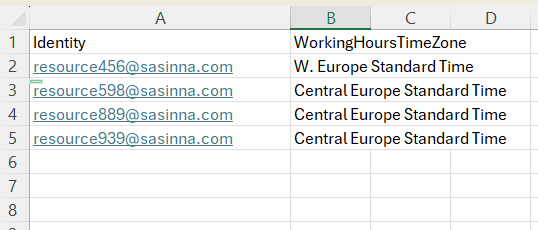


It reads a two‑column CSV (Identity + WorkingHoursTimeZone) and sets each room mailbox’s working‑hours time zone in Exchange Online.
By default it does a safe rehearsal (no changes). Add -Apply to actually update.
Think of it like this:
- CSV = your to‑do list
- Script = the worker
- WhatIf (default) = rehearsal
-Apply= do it for real- Log CSV = receipt showing what happened
🧰 Before you run
- You need the ExchangeOnlineManagement PowerShell module.
- You need to be able to sign in to Exchange Online.
- Your CSV must have exact headers:
IdentityandWorkingHoursTimeZone.
Example values:resource456@sasinna.com,W. Europe Standard Time
🧩 What each part does
1) Header comments (.SYNOPSIS, .DESCRIPTION, etc.)
These are just notes for humans: what the script does, how to run it, and examples.
2) param(...)
$CsvPath: where your CSV is (default is.\\batch_01.csv).-Apply: a switch to control whether to commit changes.- Not used → dry run (WhatIf): shows what would change
- Used → script actually updates time zones
3) Module & connection
- Checks if ExchangeOnlineManagement exists; installs it if missing.
- Loads the module.
- Tries a lightweight command to see if you’re already connected.
- If not connected, it prompts you to sign in.
If standard sign‑in fails (WAM/window handle issues), it falls back to device code sign‑in.
4) Read & validate CSV
- Confirms the file exists; if not, stops with a clear message.
- Imports the CSV and trims spaces from both columns.
- Makes sure the CSV isn’t empty.
- Builds a list of valid Windows time zone IDs from .NET (what Exchange expects).
Examples:W. Europe Standard Time,Central Europe Standard Time,Pacific Standard Time - Prepares a log file name with a timestamp.
- Decides mode:
- No
-Apply→ prints “Running in DRY RUN mode (WhatIf)” - With
-Apply→ prints “Applying changes…”
- No
5) Process each row (the loop)
For every line in your CSV:
- Shows a progress bar with “1 of N: ”.
- Creates a result object to log what happens.
- Guards against bad data:
- If Identity or WorkingHoursTimeZone is blank → throw an error for that row.
- If the time zone isn’t a valid Windows time zone ID → throw an error for that row.
- Reads the current setting with
Get-MailboxCalendarConfiguration. - If the current time zone already matches the target → logs NoChange.
- If it’s different:
- In dry run → calls
Set-MailboxCalendarConfiguration … -WhatIfand logs WouldUpdate. - With
-Apply→ actually sets the time zone, then reads it again to confirm and logs Updated (or logs a mismatch if something didn’t stick yet).
- In dry run → calls
6) Write results (the receipt)
- Exports everything it did to a CSV log in the same folder as your input file.
File name looks like:WorkingHoursTimeZone_UpdateResults_YYYYMMDD_HHMMSS.csv.
📋 What you’ll see in the results log
- Identity: the mailbox you targeted
- PreviousTimeZone: what it was before
- TargetTimeZone: what you asked for
- EffectiveTimeZone: what it read after the operation
- Action:
- NoChange → already correct
- WouldUpdate → dry run would have changed it
- Updated → change applied
- Error → row failed (see Error column)
- Success: TRUE/FALSE
- Error: any error message captured
🚀 How to run it (quick)
Dry run (safe rehearsal, no changes):
.\Set-RoomWorkingHoursTimeZone.ps1 -CsvPath .\batch_01.csv
Apply changes (do it for real):
.\Set-RoomWorkingHoursTimeZone.ps1 -CsvPath .\batch_01.csv -Apply
You should see one of these status lines at the start:
- Dry run →
Running in DRY RUN mode (WhatIf). Use -Apply to commit changes. - Apply →
Applying changes