


Why Overrides Behave Differently Across Clients?
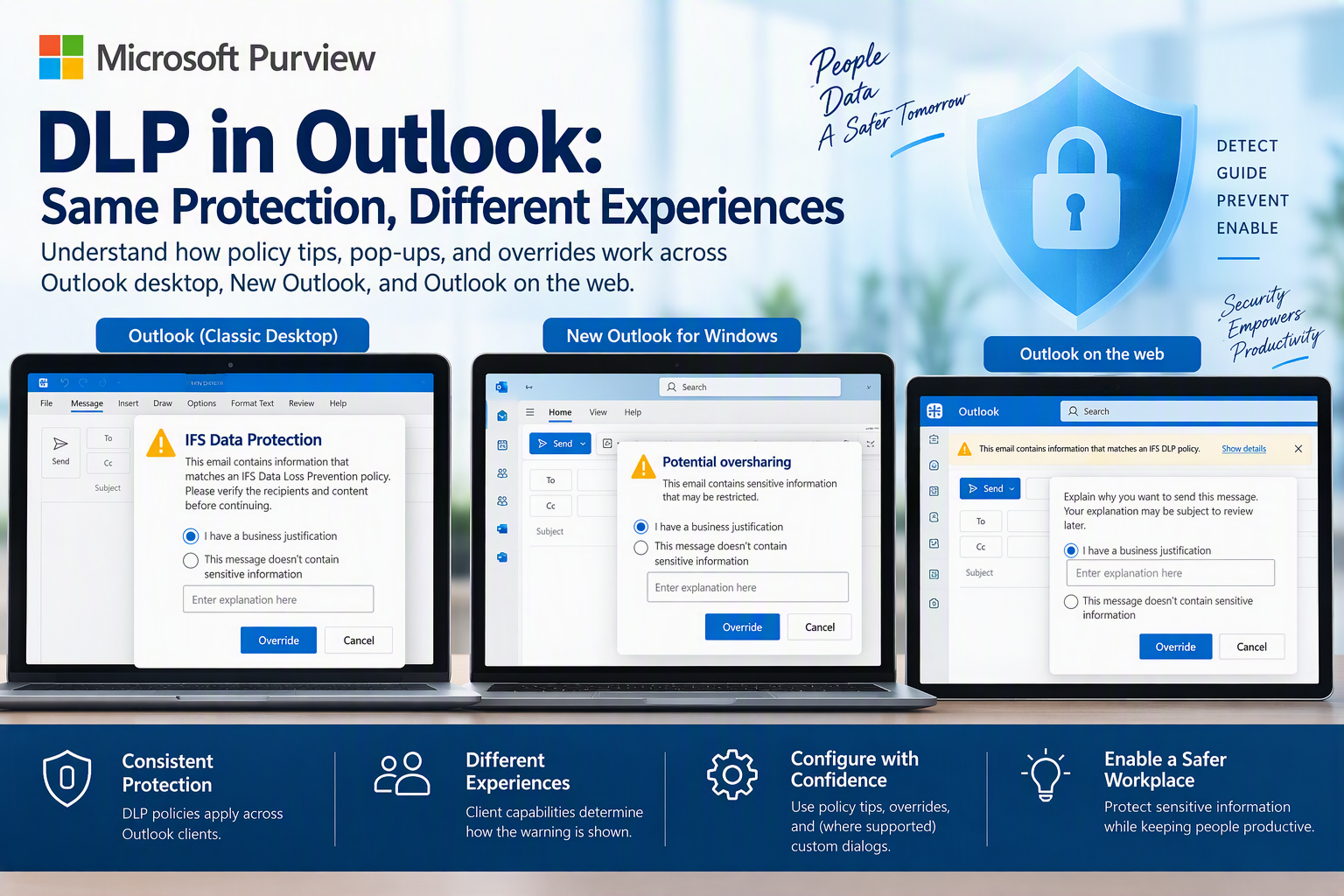
Microsoft Purview Data Loss Prevention can warn users, request a business justification, or block emails containing sensitive information. However, the user experience is not identical across Classic Outlook, New Outlook & Outlook on the web.
A custom dialog may appear in supported desktop clients, while Outlook on the web continues to show Microsoft’s standard override window. This is expected and does not mean that the DLP policy has stopped working.
Policy enforcement and policy tips are different
A DLP rule has several separate components:
- Detection: Determines whether the email matches the policy.
- Enforcement: Applies an action, such as blocking the email.
- Policy tip: Explains the issue to the sender.
- Override: Allows the sender to proceed when the rule permits it.
Policy tips should not be treated as the security control. The rule’s conditions and enforcement actions provide the protection.
What is a policy tip?
A policy tip appears while the user is composing an email that matches a DLP rule. In supported Outlook clients, the tip appears above the recipients and can respond to sensitive information in the subject, message body, or attachments.
If override is permitted, the user can select Show details, choose an override option, and provide a business justification or report a false positive. Can see that some delay may occur between adding sensitive content and seeing the policy tip.
Organizations can customize the policy-tip text.
What is an oversharing dialog?
An oversharing dialog is a more prominent pre-send experience available in supported Outlook clients. Depending on the DLP rule, it can:
- Warn the sender.
- Require acknowledgment.
- Request justification.
- Block the message.
The oversharing pop-ups require appropriate licensing and a supported Outlook version. The Exchange DLP rule must also have Show the policy tip as a dialog for the end user before send enabled.
- Warn: Displays a warning without blocking.
- Justify: Blocks but permits override with justification.
- Block: Blocks without allowing override.
Why the experience differs across Outlook clients
Microsoft’s support matrix documents the client differences:
| Feature | Classic Outlook | Outlook Web | New Outlook |
|---|---|---|---|
| Policy tips | Yes | Yes | Yes |
| Default oversharing dialog | Yes | No | Yes |
| Customized oversharing dialog | Yes | No | Yes |
| Wait on Send for oversharing | Yes | No | Yes |
| Custom compliance URL | Yes | No | No |
Outlook on the web supports DLP policy tips, but it does not support the default or customized oversharing dialogs listed in Microsoft’s matrix.
As a result:
- Classic Outlook/New Outlook: Can show a supported pre-send oversharing dialog.
- Outlook Web: Shows a policy tip and then uses Microsoft’s standard override interface.
The difference is primarily a user-interface and pre-send capability difference. The DLP rule can still apply in Outlook on the web when its conditions and actions are supported.
JSON does not appear in Outlook Web
The JSON uploaded under Upload a JSON file containing custom content that will be used in the pop-up dialog is for the customized oversharing dialog on supported clients.
It can define elements such as:
- Dialog title.
- Body text.
- Language.
- Custom justification options.
- Free-text justification.
However, the JSON does not replace every DLP dialog across all Outlook clients.
The customized policy-tip text appears in Outlook Web, but the override window still shows Microsoft’s standard options:
- I have a business justification
- This message doesn’t contain sensitive information
- Override
- Cancel
Customized oversharing dialogs are not supported in Outlook on the web.
Can the Outlook Web override dialog be customized?
The standard Outlook Web override window cannot be replaced using the custom oversharing-dialog JSON.
Administrators can customize the policy-tip text displayed before the override window, but Outlook Web continues to use Microsoft’s standard interface for submitting a justification or reporting a false positive.
The recommended approach is:
- Put the organization-specific explanation in the policy tip.
- Explain why the email was flagged.
- Tell users when override is appropriate.
- Allow Outlook Web to present Microsoft’s standard justification window.
Understanding the override choices
I have a business justification
The sender confirms that the email contains the detected information but has a valid business reason to send it. When the rule uses NotifyAllowOverride with WithJustification, Microsoft enables the justification options.
This message doesn’t contain sensitive information
The sender reports the detection as a false positive. Microsoft documents that supported override experiences can allow users to provide a business justification or report a false positive.
Users should understand the difference:
- Use business justification when the detection is valid but sending is legitimately required.
- Use doesn’t contain sensitive information only when the detection is believed to be incorrect.
How Wait on Send works
Wait on Send gives Outlook time to complete DLP evaluation before the email is sent.
In New Outlook, Microsoft documents the following Exchange Online settings:
DLPWaitOnSendEnabled: Enables evaluation before sending.DLPWaitOnSendTimeout: Controls how long Outlook waits before offering the applicable option to proceed without waiting for evaluation to finish.- A timeout of
0makes Send Anyway immediately available. - A timeout of
9999or greater prevents sending without completing the DLP evaluation.
Wait on Send support for Classic Outlook & New Outlook, but not Outlook on the web.