


Microsoft Forms is one of the easiest tools in Microsoft 365 – just open, design, share, done ✅
But behind that simplicity lies a question most people forget to ask:
“What happens to my Form when I leave the company?”
🧠 1. Where Does Form Data Actually Live?
Microsoft Forms stores data in two layers:
| Component | Storage |
|---|---|
| Form structure | Microsoft Forms cloud |
| Responses (Personal Form) | OneDrive (linked Excel) |
| Responses (Group Form) | SharePoint (linked Excel) |
| File uploads | OneDrive / SharePoint |
👉 If it’s your personal form — it lives with you.
👉 If it’s a group form — it lives with the organization.
⚠️ 2. What Happens When a User Leaves?
🔴 Personal Form
- Form becomes inaccessible
- Responses may be lost
- Power Automate flows break
- Only ~30 days for recovery
🟢 Group Form
- Continues working
- Other members can manage
- Data safely stored in SharePoint
Lesson: Personal Forms = single point of failure.
✅ 3. Best Practices for Creating Forms
🏆 Golden Rule:
If it serves the business, it shouldn’t belong to a person.
Quick Checklist:
- Use M365 Groups / Teams for business forms
- Use service accounts for Power Automate flows
- Store responses in SharePoint / Dataverse
- Document ownership clearly
- Assign at least 2 owners
🚪 4. Leaver Process — Don’t Wait Until It’s Too Late
Before someone leaves the organization:
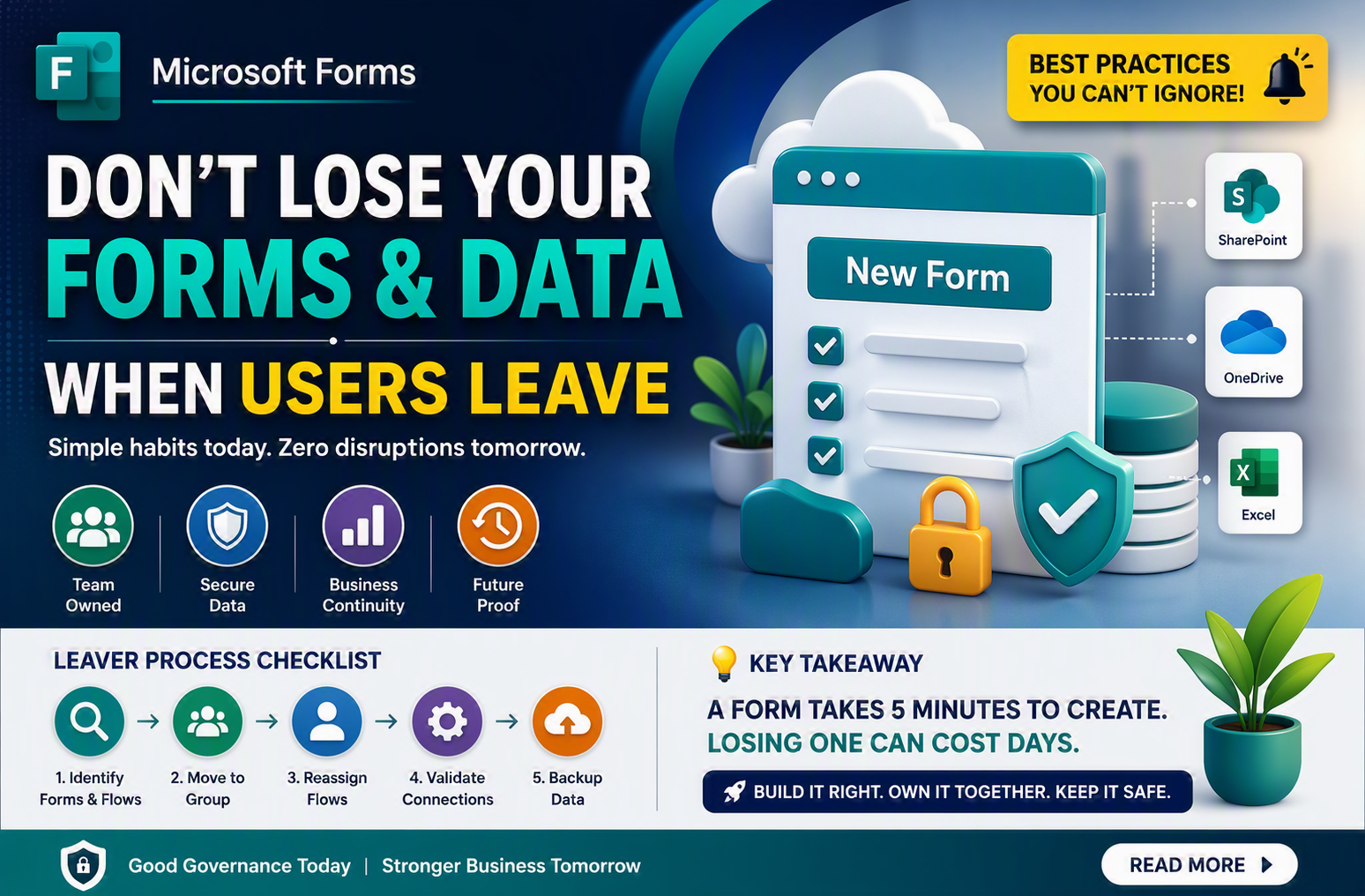
- Identify their Forms & Flows
- Move forms to Group
- Validate connectors
- Backup linked Excel files
A Microsoft Form may take 5 minutes to create — but losing one can cost hours of rework, lost data, and broken processes.
Build it once. Build it right. Build it for the team — not for a person.
🟦 Stay smart. Stay governed. Keep your Forms future-proof. ✨